How to Access SAP S/4HANA for Free with Google Cloud Credits
I paid over $1,000 to access SAP for 6 months. I thought that was the price to pay for personal access outside of a company. A few weeks ago, I discovered a method to get exactly the same thing for $0 — and it's completely legal.
In this article, I'll walk you through the 3 paid solutions most used by consultants, then the method I now use to get SAP S/4HANA for free.
Paid Alternatives
If you're looking for personal SAP access to train or test your automations, here's what the market offers:
| Solution | Price | System |
|---|---|---|
| Michael Management | $179/month — $1,649/year | S/4HANA |
| RentOurServer | $100–250/month | S/4HANA |
| LearnSAP.com | $149/month | S/4HANA |
Michael Management is the most well-known — fast access, latest versions available, around $179/month. This is the kind of solution I used for a long time. RentOurServer offers variable pricing depending on configuration. LearnSAP.com is at $149/month for S/4HANA.
These solutions work well if you need immediate, continuous access. For occasional use or learning, the cost-to-value ratio is hard to justify.
The $0 Method: SAP CAL + Google Cloud
The trick relies on two things:
SAP CAL (Cloud Appliance Library) — SAP's official platform for deploying cloud instances. It offers SAP S/4HANA 2025 Fully-Activated Appliance, a complete pre-configured image. Cost on Google Cloud: around $80/month.
Google Cloud free credits — Google offers $300 in free credits to every new account. At $80/month, that covers roughly 3 full months of SAP without spending a cent.
The principle: each deployment starts a 30-day trial license. You work, end your session, delete the instance ($0 cost at rest). Next time you need it, redeploy — it's fast once the setup is done.
8-Step Installation Guide
Step 1 — Create an SAP CAL account
- Go to cal.sap.com (SAP's official site) and create an account with your personal email
- Click Explore our library
- Search for SAP S/4HANA 2025 Fully-Activated Appliance → click Create Appliance
- Select Google Cloud Platform as your cloud provider
- Give your installation a name (e.g. "SAP AutomatiseOffice")
Step 2 — Create a Google Cloud account
- Go to cloud.google.com/free and create an account with your personal email
- Google will ask for a credit card — this is only to verify you're a real person (anti-bot). Your card will not be charged.
- You receive your $300 in free credits immediately upon creation
- Go to console.cloud.google.com and create a new project
Step 3 — Enable the required APIs
Paste these two URLs into your browser and click Enable on each page. Wait 2-3 minutes:
https://console.developers.google.com/apis/api/cloudresourcemanager.googleapis.comhttps://console.developers.google.com/apis/api/compute.googleapis.com
Step 4 — Disable the JSON security policy
This step allows SAP CAL to use your Google service key.
- IAM & Admin → Organization Policies
- Search for
disableServiceAccountKeyCreation - Click on the Active row → Edit Policy
- Select Override parent's policy → Add a rule → Enforcement: OFF → Save
Step 5 — Create the Service Account and JSON key
- IAM & Admin → Service Accounts → + Create Service Account
- Name:
sap-cal— Role: Owner → Done - Click on
sap-cal→ Keys tab → Add Key → Create new key → JSON - Keep the downloaded
.jsonfile safe — you'll need it for every deployment
Step 6 — Deploy the instance on SAP CAL
- Go back to SAP CAL and upload the JSON file (Service Account Key)
- Region:
europe-west1(or the region closest to you) - Create a strong password (15-20 characters)
- Click Create — fully automatic deployment, expect 1 to 2 hours the first time
Step 7 — Connect to SAP GUI
Once the instance is active in SAP CAL, click Connect:
- On Mac: connect via the included Windows virtual machine (Windows App / Remote Desktop)
- On Windows: install SAP GUI for Windows directly and connect without an intermediary
SAP GUI connection parameters:
- Application Server: public IP shown in SAP CAL
- Instance:
00— System ID:S4H— Client:100 - Login:
BPINST— Password: the one created in step 6
Step 8 — Manage the instance after your session
Two options depending on your usage:
Suspend — the instance goes into standby. It still costs around $80/month (charged to your GCP credits). You reactivate it in a few minutes with Activate. Useful if you use it frequently.
Terminate (recommended to save credits) — completely deletes the instance. Cost: $0 until next session. When you need it again, redeploy from step 6. Once the setup is done, it's fast.
Managing GCP Quota Errors
During the first deployment, GCP will likely block with three types of quota errors. All are resolved from IAM & Admin → Quotas & System Limits.
1. CPU Quota (europe-west1) — increase from 32 to 64
Error in SAP CAL: "Your GCP service quotas have been exceeded".
- Filter by CPUs + europe-west1
- Click Edit Quota → set 64
- Justification:
Need 64 CPUs to deploy SAP S/4HANA 2025 Fully-Activated Appliance via SAP CAL.
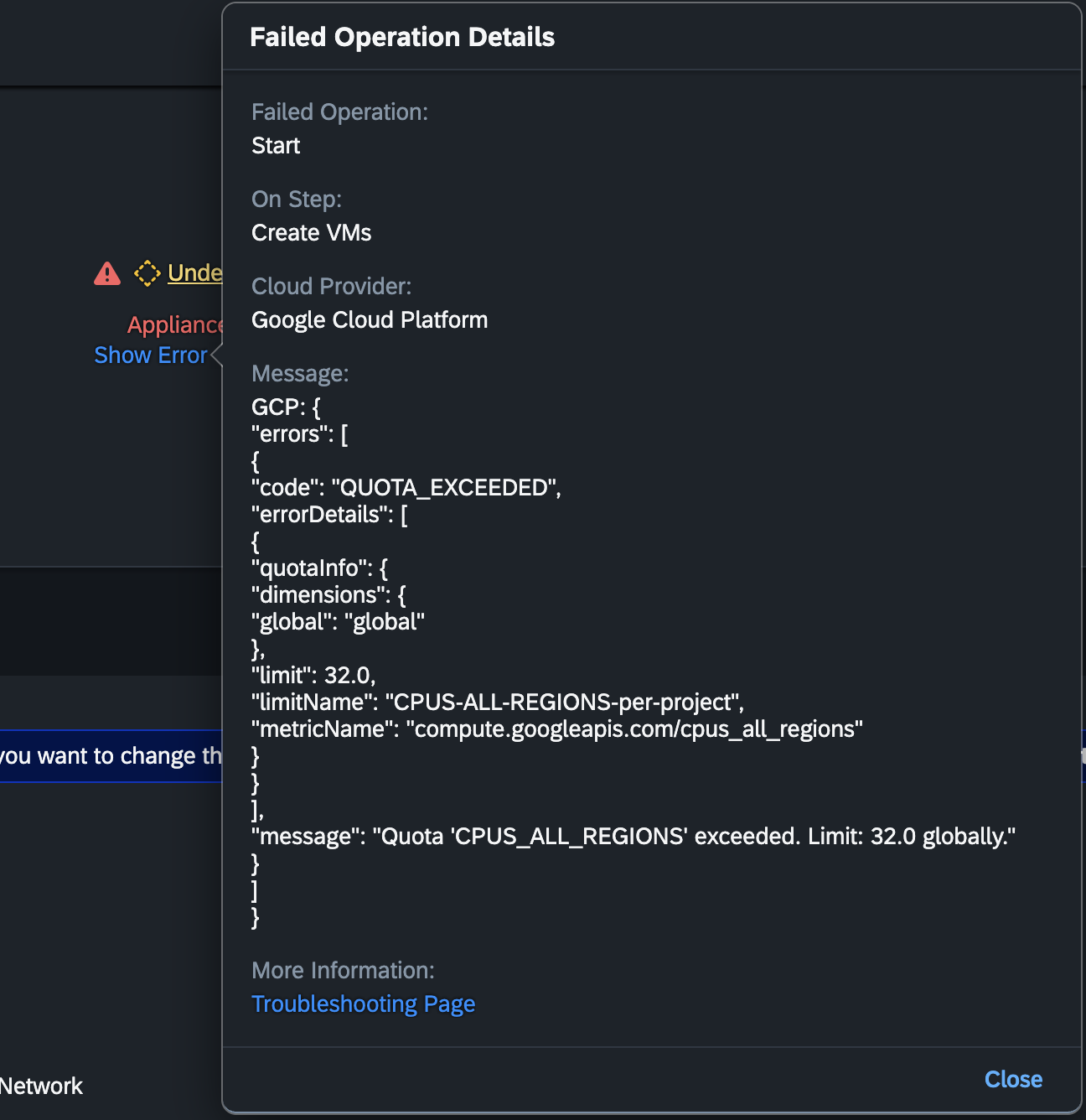
2. CPU All Regions Quota — increase from 32 to 64
Error QUOTA_EXCEEDED mentioning CPUS_ALL_REGIONS.
- Filter by
CPUS_ALL_REGIONS - Edit Quota → set 64
- Same justification as above

Approval is automatic — a few seconds.
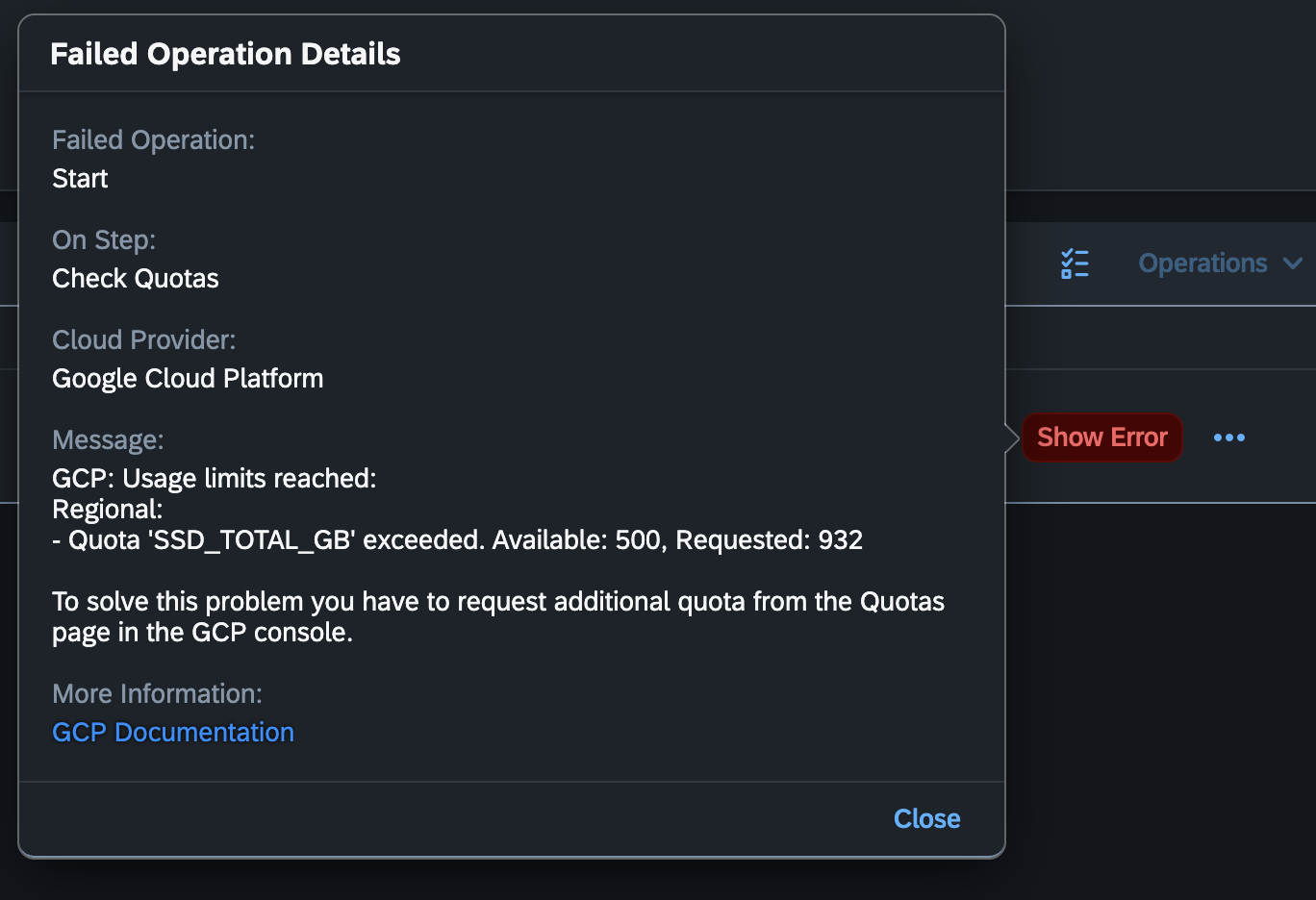
3. SSD Quota — increase from 500 to 1000 GB
Error SSD_TOTAL_GB exceeded.
- Filter Persistent Disk SSD + europe-west1
- Edit Quota → set 1000 GB
- Justification:
Need 1000 GB SSD to deploy SAP S/4HANA 2025 Fully-Activated Appliance via SAP CAL.
Once all three quotas are approved, restart the deployment from step 6.
Download the Complete Guide
All links, screenshots, and quota justifications in one document:
Frequently Asked Questions
Is it legal to use SAP CAL this way?
Yes. SAP CAL is SAP's official platform for demo and training instances. Trial licenses are designed for this use.
Do I need a real credit card for Google Cloud?
Google asks for a card to verify you're a real person. Your card won't be charged as long as you stay within the $300 in free credits. A virtual card (Revolut, etc.) works perfectly.
How long do the $300 in credits last?
Around 3 months if the instance runs continuously (~$80/month). If you use the Terminate option between sessions, your credits last much longer.
What happens when the credits run out?
You can create a new Google Cloud account with a different email address to get another $300 in credits.
Is the SAP instance complete?
SAP S/4HANA 2025 Fully-Activated Appliance is a pre-configured image with demo data. It covers the vast majority of SAP modules (MM, SD, FI, CO, etc.) and is perfectly suited for learning and testing automations.